
Remove and change video backgrounds
A complete getting-started guide to removing video backgrounds, exporting transparent or solid-color clips, and choosing an AI-generated scene.
Use Video BG Remover to keep the subject and remove the setting around it. Choose transparency for another edit, or a solid color for a finished clip. To generate a new environment from text or an image, select Video BG Changer & Editor instead.
This guide covers the full background-removal workflow, from choosing a source to checking the downloaded result. Open the workspace to begin.
Choose the result you want
| Your goal | Where to start | Result |
|---|---|---|
| Remove an ordinary video background | Video BG Remover in the homepage workspace | A transparent cutout or a solid-background clip |
| Remove a green screen | Green Screen Remover | A transparent subject for another edit |
| Make a reusable transparent layer | Make Video Transparent | A cutout in an alpha-compatible format |
| Remove an animated GIF background | GIF Background Remover | An animated cutout |
| Generate a different scene | Video BG Changer & Editor in the homepage workspace | A scene guided by your prompt and optional reference images |
The three dedicated cutout pages use the same background-removal workflow with transparency selected. The GIF page also starts with GIF output selected.
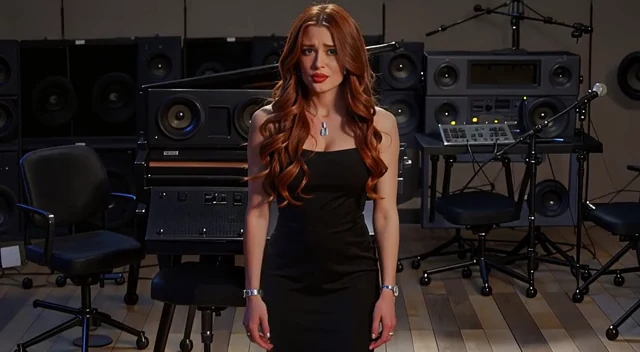
Original video
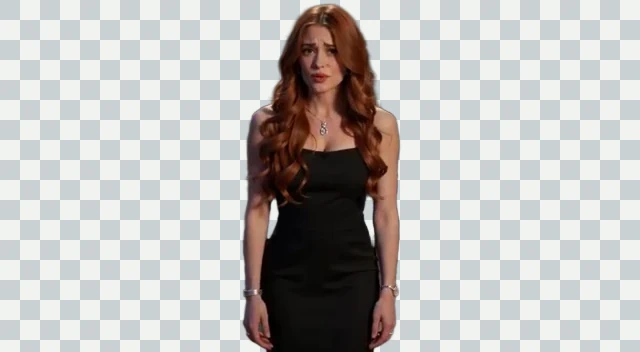
Background removed
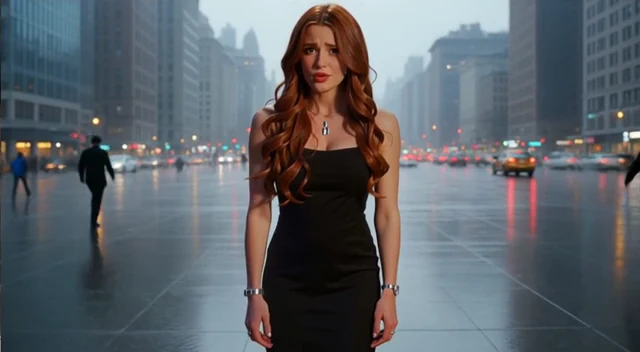
New background
The checkerboard represents transparency. The scene-change example shows an AI-generated setting; details can be reinterpreted during generation.
Prepare your source video
Choose footage where the subject is clearly visible and stays inside the frame. Ordinary recordings and green-screen footage both work with the remover. Good lighting and separation between the subject and background help; test a short section first when the footage contains hair, fast motion, reflective objects, or blurred edges.
The background remover accepts:
| Requirement | Accepted input |
|---|---|
| File type | MP4, MOV, WebM, M4V, or GIF |
| Guest file size | Up to 200 MB |
| Signed-in file size | Up to 2,000 MB |
| Dimensions | Width and height each no more than 4,090 pixels |
Other models have their own limits. Use footage and references you have permission to edit, and follow the workspace's current sign-in and verification prompts.
Download the sample below if you want to follow the remover steps with an example:
Follow along with a sample clip
Download this silent five-second MP4, then upload it to follow the steps in the workspace.
Download the sample video1. Upload your video or GIF
Open the homepage workspace, select Video BG Remover, and choose Upload a video or GIF. You can also select a suitable file from My Creations. Wait for the upload to finish before submitting the task.
For GIFs, check one full animation cycle after uploading. The GIF tutorial explains animation-specific settings.
2. Choose a transparent or solid background
The homepage starts with Green selected. Keep it when you want a green-background asset for later chroma key work. Choose Transparent when you want another image or video to show through the removed area.
Choose Black, White, or another available color when you want the downloaded clip to include that visible background. A green or white output contains a solid background; a transparent export keeps an alpha channel. The checkerboard in a preview is a display convention and is not painted into the exported video.
The dedicated green-screen, transparent-video, and GIF pages already select transparency. Green Screen Remover uses AI subject separation without requiring you to choose a key color manually.
3. Choose the export format
Check which formats your next editor or app accepts before generating.
| Your next step | Suggested export |
|---|---|
| A transparent web overlay or a compatible video editor | WebM VP9 |
| Editing in software with ProRes alpha support | MOV ProRes KS |
| A workflow that accepts VP9 in an MKV container | MKV VP9 |
| Animated stickers and short loops | GIF |
| Sharing a clip with a solid background | MP4 H.264 / H.265 |
The receiving application must support the chosen format and its alpha channel. Standard MP4 output does not preserve transparency. Converting a transparent clip to a format without alpha also removes that transparency. GIF supports fully transparent or opaque pixels with a limited palette; an alpha-compatible video format can be more suitable for soft edges.
4. Review, generate, and download
Open the workspace for video background removal, green screen removal, transparent video export, or GIF background removal. Upload your file and confirm your settings, then check the current credit estimate beside the button that starts processing. For subscriptions and credit packs, see Pricing.
When the task finishes, watch the full result. Inspect fine edges, hair, motion blur, reflections, and sound. Use the download button to save the files you want to keep.
Reuse the transparent subject in another project
In an alpha-compatible editor, place the new background on a lower layer and the transparent subject above it. You can reuse the same performance over slides, a screen recording, a webpage, or another video.
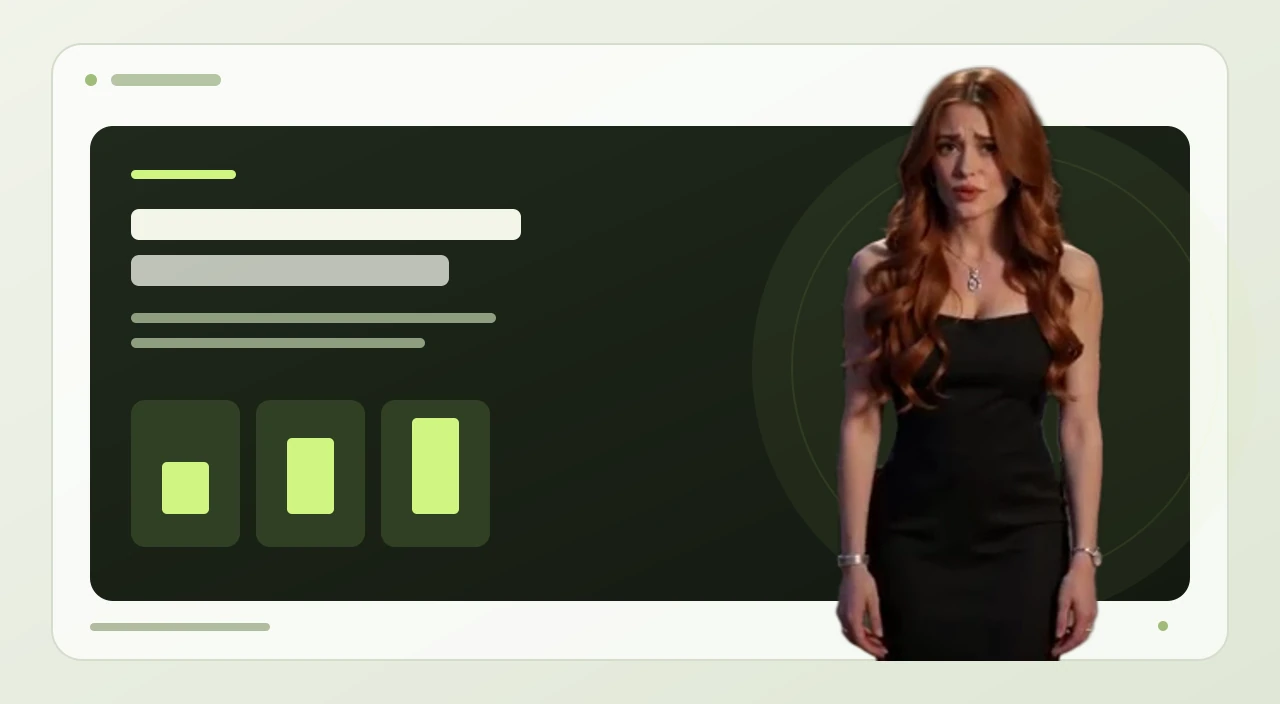
Some players show transparent areas against black. Keep the original download and place it over a colored layer in a compatible app to check transparency. A visible white or black background encoded into a standard MP4 is part of that video.
If you need an unchanged background picture with precise subject placement, use this compositing workflow. A reference image in the scene editor instead guides a generated environment.
Generate a new scene with text or a reference image
Select Video BG Changer & Editor in the homepage workspace. It accepts MP4 or MOV, 3–15 seconds, up to 200 MB, with both dimensions between 720 and 3,840 pixels and a frame rate of 23–60 FPS.
Describe the background you want and the details to retain. For example:
Change only the background in @Video1 to a bright photography studio.
Preserve the subject's appearance and actions, shot timing, framing,
and camera movement. Match the setting's perspective and contact
shadows to the subject.
Add reference images when you want visual guidance. Use @Image1 for an uploaded image and @Element1 for a configured character or object. Review the Fast or Advanced mode, credit estimate, and audio preference before generating.
The Video BG Changer & Editor tutorial walks through reference uploads, subject replacement, and complete prompt examples.
Check the audio and save your downloads
Video BG Remover has no audio toggle. Check the downloaded result's sound and use an editor to add or remove audio tracks. GIF files do not contain audio.
In Video BG Changer & Editor, use Keep Original Sound when you want the source audio retained. Preview the finished result to confirm that the audio suits your edit.
Preview a completed task, then use its download button. Generated resources are stored for 7 days. Save important outputs to your own storage before that period ends, and keep the original alpha-compatible download if you plan to use its transparency later.
Common questions
Do I need professional editing skills?
You can upload, select a background and export without learning manual masks or chroma key controls. AI handles the initial subject separation. Detailed edge cleanup, spill suppression, precise compositing, or audio changes can still require an editor.
Can I get a transparent MP4?
Standard H.264/H.265 MP4 exports in this tool use a visible solid background. Choose an available alpha-compatible format and confirm that the receiving app supports it.
Why does my transparent video look black?
A player may display transparent pixels against black. Check that you selected Transparent and exported WebM VP9, MOV ProRes KS, or MKV VP9. Open the original file in an alpha-compatible editor and place a colored layer below it. A standard MP4 download does not contain this transparent output.
Can I paint a mask or manually adjust green spill?
The tool uses AI separation. For exact key-color controls, manual spill suppression, or frame-by-frame masks, continue in editing software with those features.
Can I remove a GIF background and keep its animation?
Yes. Use the GIF tool, then review the full animation. The GIF tutorial covers one-cycle duration and export choices.
The imported clip has a solid color. What should I check?
Confirm the background selection and the format used for the original download. White and green are visible background colors. Also check whether an intermediate conversion or export changed the file to a format without alpha support.
Why did my upload fail?
Check the selected tool's file requirements. The background editor accepts MP4 or MOV clips of 3–15 seconds, up to 200 MB, at 23–60 FPS, with both dimensions between 720 and 3,840 pixels. The remover has different upload limits. If the workspace reports a missing duration signature, reselect or re-upload the video before trying again.
Why does the edited scene differ from my reference image?
Reference images guide an AI-generated result. Details can be reinterpreted. Add a clear prompt naming the background and what should remain, then review the output. For exact placement over an unchanged image, use a transparent subject and composite the layers in a compatible editor.
Where can I check a task that has not completed?
Return to the tool's task list and check whether the task is queued, processing, or failed. Follow the displayed message before submitting it again. If the status remains unresolved, contact support with the task identifier.
Continue with a focused guide
- Remove a GIF background: animation, one-cycle duration, and export choices.
- Video BG Changer & Editor: prompts, image references, and generated scenes.
For account or task issues, contact support@bgchanger.video with the task identifier, selected model and settings, and the error shown in the workspace. Do not send passwords, payment credentials, or unrelated private files.
Read the privacy policy, terms of service, and refund policy for the applicable policies.